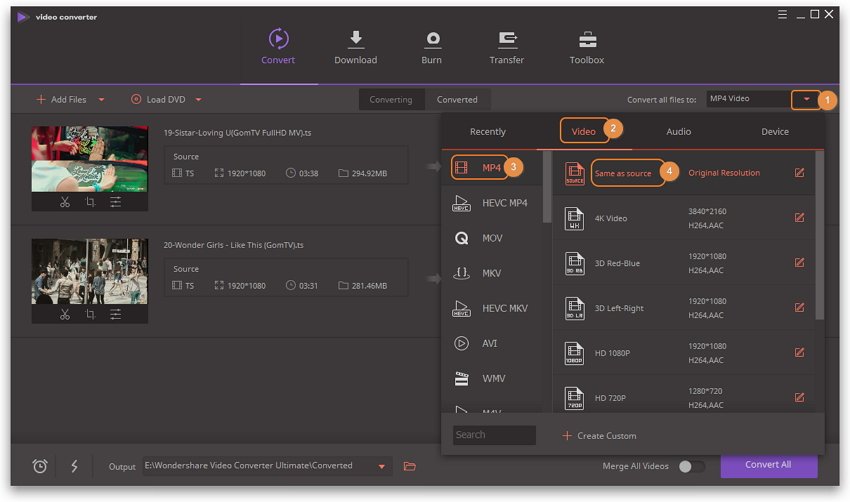
ConversioneVideo – Free Video Converter Offline is a Windows desktop app that converts and optimizes video/audio without sending anything online. It packs a clean interface, quick profiles, batch queue, and pro touches like watermark and burn-in subtitles.
Perfect for YouTube, TikTok, WhatsApp, slide decks, archiving, and maximum device compatibility.

Key features
Supported formats
-
Video: MP4 (H.264) • MP4 (H.265) • WEBM (VP9) • MKV (H.264) • AVI (MPEG-4) • MOV (H.264)
-
Audio: MP3, WAV
Quality & compression (simple but smart)
-
Output Quality with two modes:
-
Balanced (CRF) – constant quality (recommended for H.264/H.265/VP9).
-
Target Size (Bitrate) – control final file size.
-
-
Quality Level: Very High / High / Medium / Low → automatically maps CRF/bitrate by codec & resolution.
-
Max compatibility (forces yuv420p) for picky TVs/players.
Video controls
-
Resolution: Original / Preset (e.g., 1920×1080, 1080×1920, 1280×720) / Custom
-
Framerate: Original or fixed (24/25/30/60 fps)
-
Rotate/Flip: 90°/180°/270°, horizontal/vertical
-
Trim: Start/End (HH:MM:SS)
-
Watermark with position (4 corners) & opacity
-
Burn-in subtitles (hard-sub into the video)
Audio controls
-
Mute, Mono/Stereo, bitrate and sample rate with Original option (no re-encode if not needed)
-
Master volume ±20 dB
-
3-band Equalizer (100 Hz / 1 kHz / 10 kHz, −12 to +12 dB)
Productivity
-
Quick Profiles: YouTube 1080p, TikTok 1080×1920, WhatsApp 720p
-
Custom presets: save & recall your favorite settings
-
Batch Queue: add multiple files and run once
-
Overwrite protection: automatic suffix (e.g.,
-converted) + unique filenames -
Required output folder for queue, set right under the queue buttons
UX niceties
-
Accurate progress bar (ffprobe duration + FFmpeg
time=parsing) -
Live log hidden by default (toggle “? Log” → “? Hide Log”)
-
Cancel anytime
-
Completion toast with Open output folder button
-
Shortcuts to open the output folder from the toolbar and next to the progress bar
Privacy & performance
-
100% offline (uses local FFmpeg — no uploads)
-
Auto-detects
ffmpeg.exeandffprobe.exenext to the app -
Snappy WPF interface

How to use (3 steps)
-
Pick your file (or add multiple files to the Batch Queue).
-
In Output Format, choose container/codec and, if needed, enable Max compatibility (yuv420p).
-
In Output Quality, choose Balanced (CRF) or Target Size (Bitrate) and a Quality Level.
-
Optional: resolution/framerate, rotate/flip, trim, watermark, subtitles, audio/EQ.
-
-
Click Start Conversion for a single file, or Start Queue to process everything in batch.
Tip: For TikTok, use the 1080×1920 vertical profile. For WhatsApp, the 720p profile keeps size small with solid quality.
Common use cases
-
Old TVs / strict players: enable Max compatibility (yuv420p).
-
Shrink file size: choose Balanced (CRF) with Quality = Medium.
-
Low audio level: raise Volume by +3/+6 dB; tweak Bass/Mid/Treble.
-
Branding: add a watermark top-right at ~30–50% opacity.
-
Social captions: use burn-in subtitles (always visible, no caption support needed).
Requirements & installation
-
Windows 7/8/10/11 (x86/x64)
-
.NET Framework 4.8 or later
-
Microsoft Visual C++ 2015–2022 (x86) Runtime
-
FFmpeg (copy
ffmpeg.exeandffprobe.exenext toConversioneVideo.exe) -
The recommended installer checks/installs .NET 4.8+ and VC++ runtime automatically if missing.
FAQ
Does it require internet?
No. Everything runs offline on your PC.
Which quality mode should I use?
-
Balanced (CRF): best quality/size trade-off, set-and-forget.
-
Target Size (Bitrate): when you must hit a specific file size/bitrate.
Can I avoid re-encoding audio?
Yes. With Original bitrate/sample rate and no EQ/volume, the app can use audio copy when the container allows it.
Why force yuv420p?
For maximum compatibility with older TVs/players. Enable it if playback fails or shows artifacts.
How do you prevent overwrites?
The app adds a suffix (e.g., -converted) when there’s overwrite risk and auto-generates unique names.